Microsoft
You can use Microsoft as a social login provider for your site users. To do so, you need to register an application with the Microsoft identity platform (via the Microsoft Entra admin center or Azure portal) and configure it with the appropriate permissions and redirect URIs.
Set up Microsoft social login
Microsoft frequently updates their administrative portals, so we recommend you follow their official documentation to register your application.
| Keep your ReachFive Console open in another tab, as you will need to copy the Client ID, Client Secret, and Scopes from Microsoft into ReachFive. |
-
Follow the official Microsoft guide to Register an application with the Microsoft identity platform.
During registration, make sure to configure the following specific settings for ReachFive:
-
Supported account types: Select either Accounts in any organizational directory or personal Microsoft accounts to ensure standard consumer accounts (Outlook, Xbox, Hotmail) can log in.
-
Redirect URI: Select Web from the platform dropdown and enter your ReachFive callback URL.
https://YOUR_REACHFIVE_DOMAIN/login/callback (1)1 Find YOUR_REACHFIVE_DOMAINin your console settings.
-
-
Once registered, stay on the app’s Overview page and copy the Application (client) ID.
-
Create a client secret.
Follow the Microsoft instructions to Add a client secret.
You must copy the Value of the client secret immediately upon creation. Microsoft only displays this value once. If you navigate away without copying it, you will need to generate a new secret. -
Ensure needed scopes.
By default, Microsoft usually grants the
User.Readpermission. For standard social login profile creation, you typically need the standard OpenID Connect scopes.Make sure your app has permissions to request
openid,profile, andemail. You can review these under the API permissions menu in the Microsoft portal.
Connect Microsoft social login with ReachFive
Follow the instructions below to connect your Microsoft app with your ReachFive account in the ReachFive Console.
-
You must have access to the ReachFive Console.
-
You must have a Developer, Manager, or Administrator role.
-
Log in to your ReachFive Console.
-
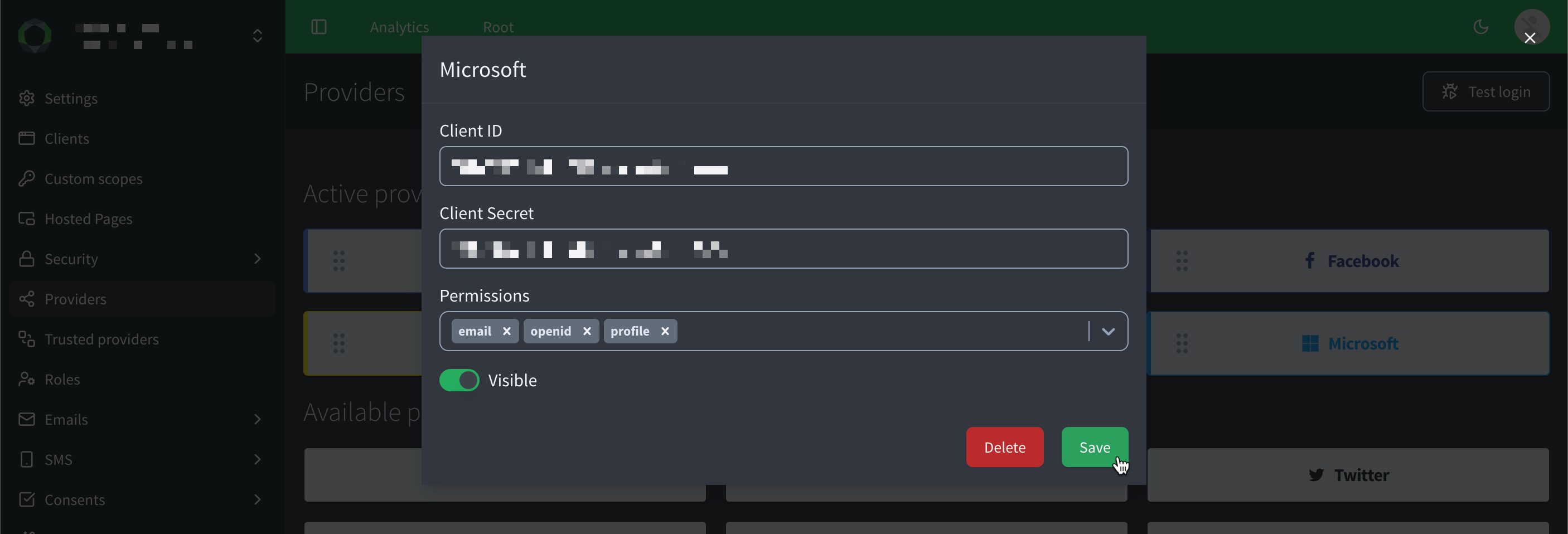
Go to and select Microsoft.
-
In the pop-up window:
-
Paste your Microsoft Client ID.
-
Paste your Microsoft Client secret.
-
Specify all Microsoft consents.
-
Don’t forget to Save your input.
-