Session device management
Session device management lets you and your users track active logins across devices, browsers, and applications. Whenever a user authenticates, a session device is created and associated with that login.
Managing session devices is a critical part of maintaining application security:
-
Visibility: You and your users can see where an account is currently logged in (for example, "Chrome on macOS" or "Safari on iOS").
-
Security control: If a device is lost, stolen, or recognized as suspicious, you can instantly revoke its session device to prevent unauthorized access.
-
Compliance: Meeting security standards often requires giving users the ability to review and terminate their own active session devices.
Enable session device storage
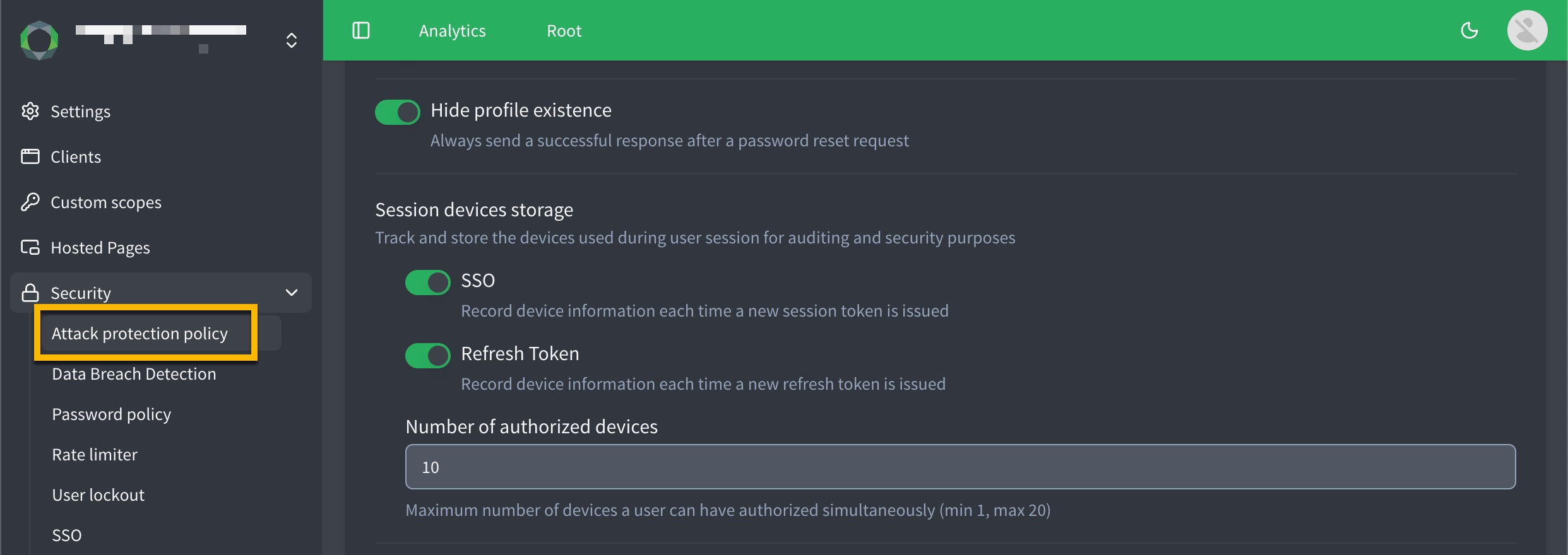
You can enable session device storage for auditing and security purposes. When enabled, ReachFive records device information for each session device, which you can use to enhance security and gain better insight into user activity.
To enable session device storage:
-
Go to in your ReachFive Console.
-
Toggle on the Session device storage option for:
-
SSO: Stores device information for session devices created through Single Sign-On.
-
Refresh token: Stores device information for session devices created through refresh token exchanges.
-
-
Set the Number of authorized devices for a user. This limits how many active session devices a user can have at once. If the limit is exceeded, the oldest session device is silently removed to make room for the new one. The minimum is
1, and the maximum is10.
Manage session devices from the console
You can view and manage session devices directly from the ReachFive Console. This lets your support teams troubleshoot login issues or quickly secure an account when a user reports suspicious activity.
To view and manage a user’s session devices:
-
Log in to your ReachFive Console.
-
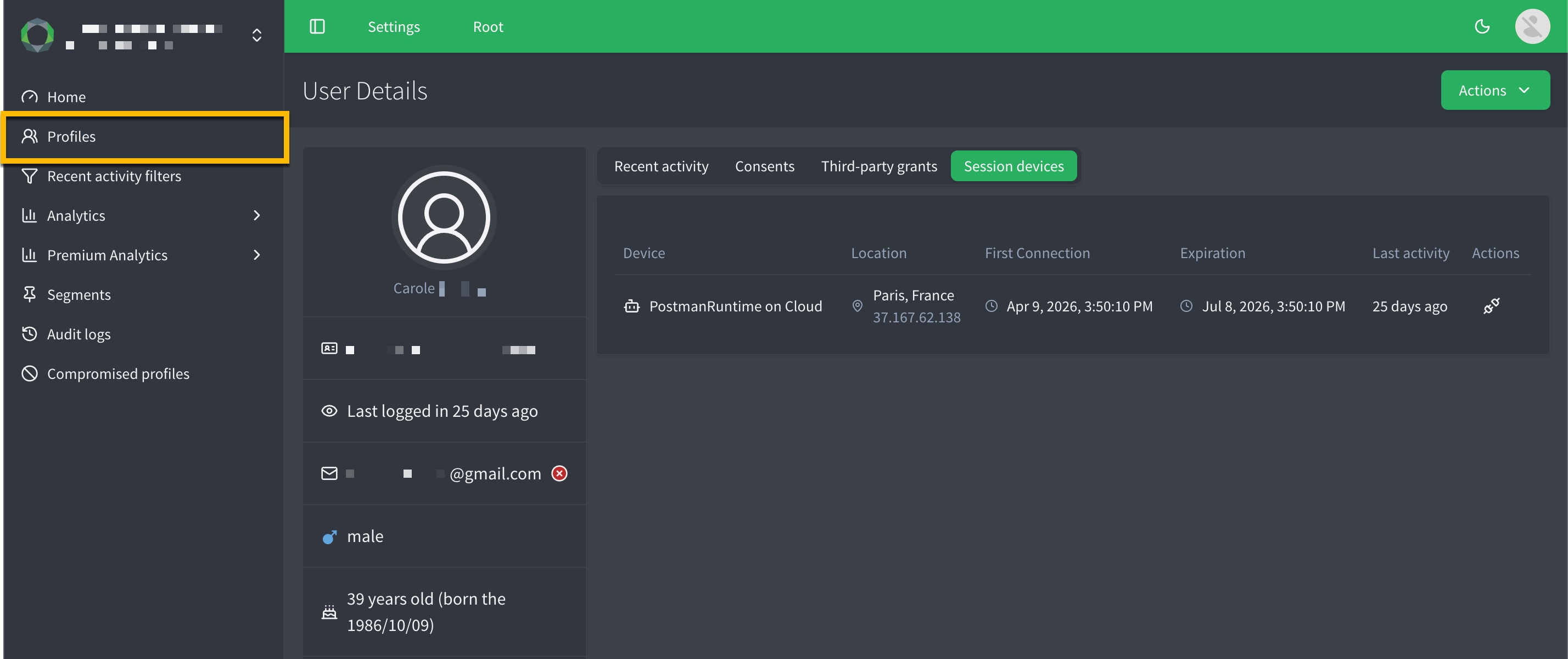
Go to .
-
Search for and click your desired user.
-
Navigate to the Session devices tab.
-
From here, you can view all active session devices, including:
-
The device name.
-
The location based on IP address.
-
When the session device was first connected.
-
When the session device is set to expire.
-
When the session device was last active.
-
-
Click the unplug icon under the Action column to revoke a session device.
Don’t worry; a dialog will prompt you to confirm the action.
-
Manage session devices from the API
You can build session device management into your application’s user profile area using our APIs.
Identity API
-
GET
/identity/v1/session-devicesendpoint: Retrieves active session devices for the authenticated user. -
DELETE
/identity/v1/session-devices/:sessionIdendpoint: Revokes a specific session device, forcing that device to reauthenticate.
Management API
-
GET
/api/v2/users/:uid/session-devicesendpoint: Retrieves active session devices for a specified user (admin access required). -
DELETE
/api/v2/users/:uid/session-devices/:idendpoint: Revokes a specific session device for a specified user (admin access required).
Core SDK
Use the following Core SDK methods to manage session devices from your frontend application:
-
listSessionDevices: Retrieves active session devices for the authenticated user. -
removeSessionDevice: Revokes a specific session device for the authenticated user.