Additional configuration
This page explains the additional configuration needed from the ReachFive side that you need to complete for the SalesForce ReachFive cartridge.
Activate the SSO feature
You need to activate the SSO feature on your ReachFive Console to ensure ReachFive properly manages the end user cookie session.
| This is not applicable if you are only using the Social Login cartridge mode. |
-
Go to in your ReachFive Console.
-
Set the Session lifetime (in days) and Require log in after (in days) for your desired platform.
-
If setting a specific platform (like Mobile), toggle the platform to Active. Otherwise, the default settings are used.
-
Ensure you enter the Allowed logout callback URLs under Global settings.
-
Don’t forget to Save your input.
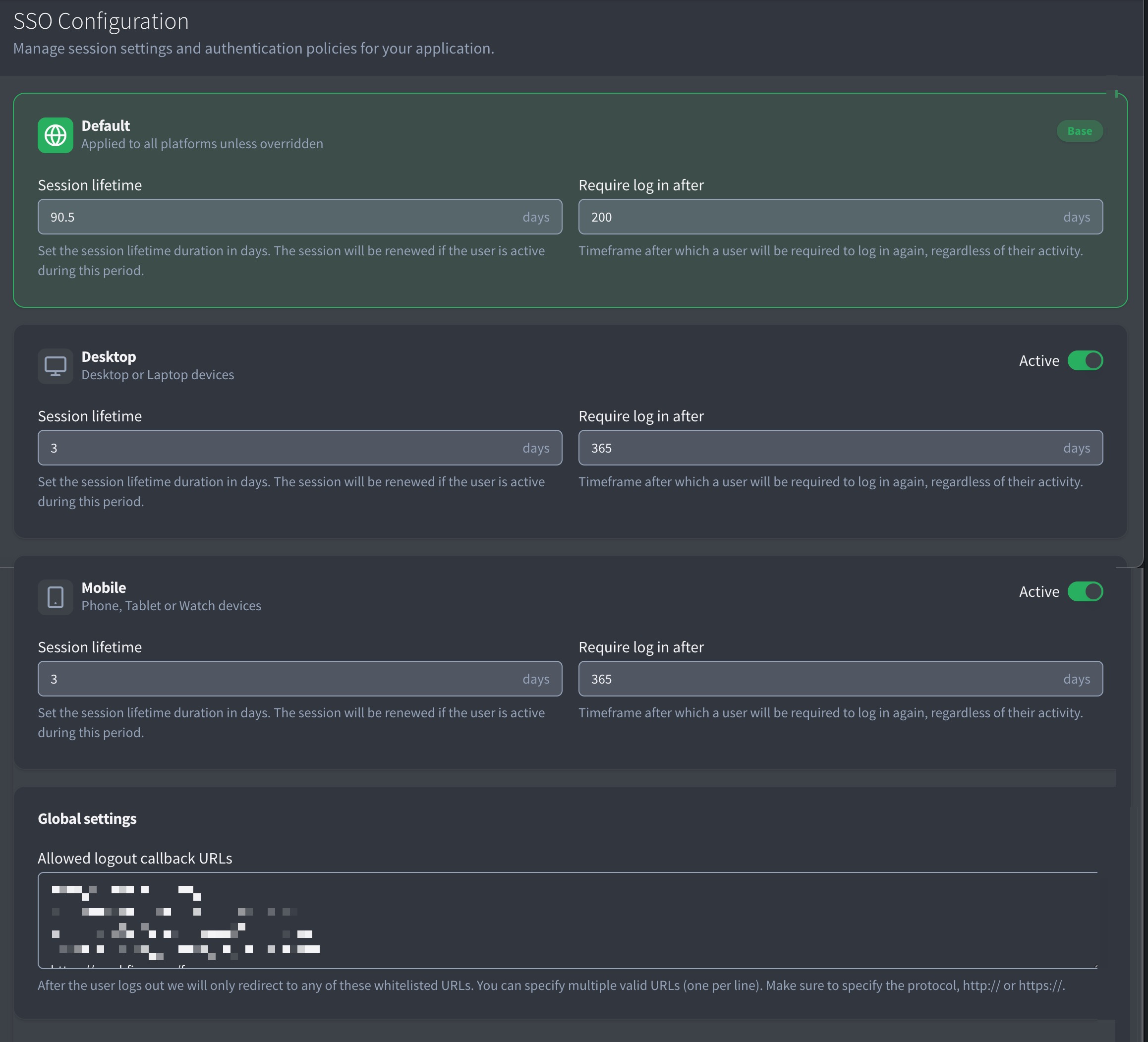
The setting is active immediately to all clients within the ReachFive account.
Session duration is renewed with the next /oauth/authorize operation or the equivalent SDK method, for instance checkSession or loginFromSession. If the cookie session lifetime expands beyond the Require login after parameter period, then the user will be forced to re-authenticate.
Configure webhook
With user-event webhooks, you can register specific URLs to be called on specific user actions or events. For cartridge setup and integration, we recommend post-event webhooks.
Post-event webhooks trigger after the event has been processed. Post-event webhooks are asynchronous: the API returns a response and the user can continue browsing your application without waiting for an answer from the URL.
-
Go to your ReachFive Console.
-
Go to .
-
Click New post-event webhook.
-
Follow the instructions to create or edit a webhook on the User-event webhooks page and ensure the following values are added where noted and Don’t forget to Save your input..
Field Value Enabled
Yes
Key
webhook_name
Where webhook_name is your desired webhook name.
Event types
user_update
Filter
optional
URL
https://<your-sandboxId>.dx.commercecloud.salesforce.com/on/demandware.store/Sites-RefArch-Site/en_US/ReachFiveController-UserUpdate
Fields
-
user.phoneNumberVerified
-
user.name
-
user.phoneNumber
-
user.emailVerified
-
user.email
-
user.username
-
user.familyName
-
user.age
-
user.birthdate
-
user.id
-
user.emails
-
user.givenName
-
user.gender
-
user.customIdentifier
-
user.nickname
Timeout
5
HTTP Authorization value
optional
-
Add standalone consent
The cartridge requires one standalone consent with the key of newsletter.
To do this, follow the instructions at Consents.