Enable reCAPTCHA from the console
You can enable reCAPTCHA directly from the ReachFive Console.
Prerequisites
-
You must have access to the ReachFive Console.
-
You must have a Developer, Manager, or Administrator role.
-
You must have an existing client or you should create a new client.
-
You must have the reCAPTCHA feature enabled on the ReachFive Console.
If you do not see the feature enabled, contact support. We’ll be happy to help.
Instructions
-
Log into your ReachFive Console.
-
Go to .
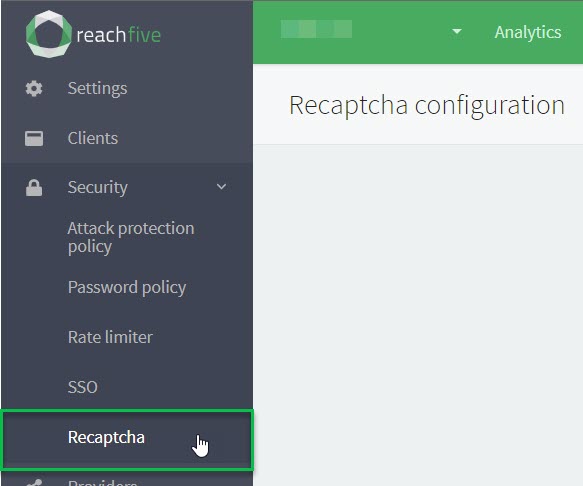
-
Click New recaptcha configuration or edit
 an existing configuration.
-
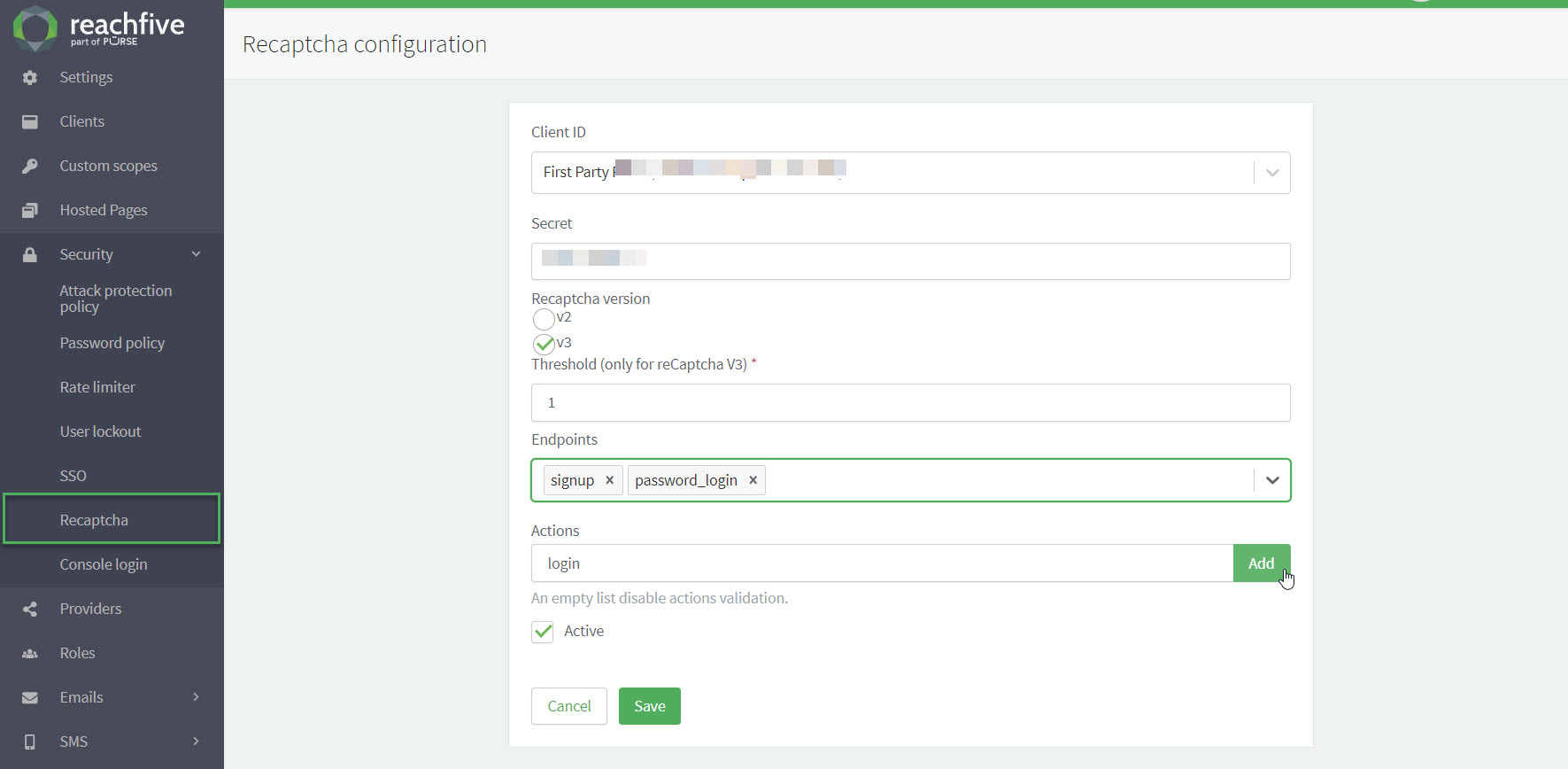
Choose the client from the dropdown where you wish to apply reCAPTCHA.
-
Paste in your site secret that Google reCAPTCHA generated for you.
-
Choose the reCAPTCHA version you wish to use.
You can only choose one for a given configuration. -
v3 only Choose the Threshold if you have selected v3.
The threshold is the reCAPTCHA score assigned to the interaction.
1.0is highly likely to be a genuine interaction whereas0.0is most likely a bot or unwanted traffic. -
Select the endpoints that you wish to apply reCAPTCHA.
Current endpoints for reCAPTCHA -
Select the reCAPTCHA user actions you wish to apply. If no actions are entered, actions validation is disabled.
Available user actions for reCAPTCHA-
signup -
account_recovery -
password_reset_requestedIf you are using version
1.35or older of our UI SDK, this will beforgot_passwordinstead ofpassword_reset_requested. -
login -
update_email -
passwordless_email -
passwordless_phone -
verify_passwordless_sms
-
-
Ensure you have selected the Active checkbox.
You can choose to temporarily disable the configuration for testing purposes without deleting your configuration, if necessary.
-
-
Don’t forget to Save your input.
What your users experience
When reCAPTCHA is enabled for an endpoint, the user may experience one of the following behaviors depending on the selected reCAPTCHA version:
reCAPTCHA v2 (Visible)
Users see an interactive challenge on your site. This typically appears as:
-
A checkbox labeled "I’m not a robot".
-
In some cases, an additional image-based challenge (for example, "Select all squares with traffic lights") if Google cannot confidently verify the interaction.
The user must complete the challenge before they can continue with the authentication flow (login, signup, password reset, etc.).
reCAPTCHA v3 (Invisible)
Users do not see any challenge element or widget.
Instead:
-
A score is silently generated in the background during the interaction.
-
No user action is required unless your application triggers additional verification when a low score is detected (for example, blocking the flow or asking for additional identity checks).
This provides frictionless bot detection without interrupting the user experience.